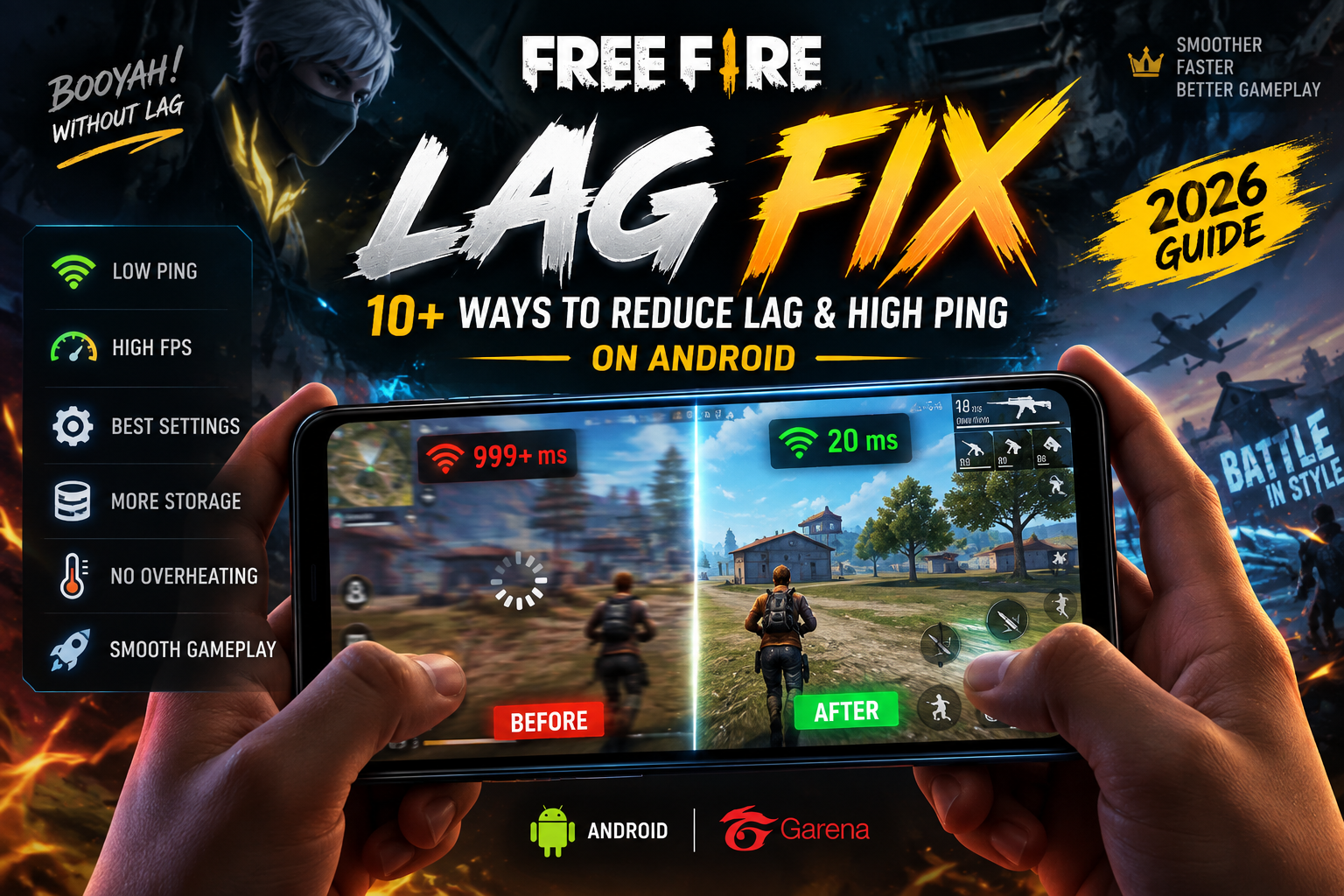
How to Fix Free Fire Lag and High Ping on Android in 2026
Introduction
The good news is that most common Free Fire lag problems can be diagnosed by checking your connection, FPS, phone temperature and game settings.
Free Fire lag can be frustrating when your game starts freezing or shuttering. You may notice delayed shots, players suddenly moving, freezing during fights, or your ping jumping from normal levels to extremely high numbers.
Lag doesn’t always mean that your phone is weak. Problems such as an unstable internet connection, background apps, overheating, limited storage, incorrect game settings, or network congestion can also affect gameplay.
In this guide, I’ll explain practical ways to reduce Free Fire lag and high ping on Android, starting with the easiest fixes before moving to more advanced solutions.
Quick tip: Don’t change everything at once. Try one fix, play a match, and check whether the problem improves.
What Causes Free Fire Lag on Android?
Before changing your settings, it’s useful to understand what is actually causing the problem.
The most common causes include:
Unstable Wi-Fi or mobile data
High network latency or ping
Too many apps running in the background
Phone overheating
Low available storage
High graphics settings
FPS limitations
Poor network coverage
Downloading or updating apps while playing
An outdated version of the game
Important: High ping and low FPS are different problems. High ping is usually related to your internet connection, while FPS drops are generally related to your phone’s performance or game settings.
1. Check Your Internet Connection
A weak or unstable connection is one of the most common reasons for high ping in Free Fire. Even if your internet speed looks good, sudden fluctuations can cause delayed movement, missed shots and temporary freezes.
Before changing your phone settings, try these simple checks:
If you’re using mobile data, move to an area with better network coverage.
If you’re using Wi-Fi, stay reasonably close to the router.
Stop downloads, video streaming and other heavy internet activity while playing.
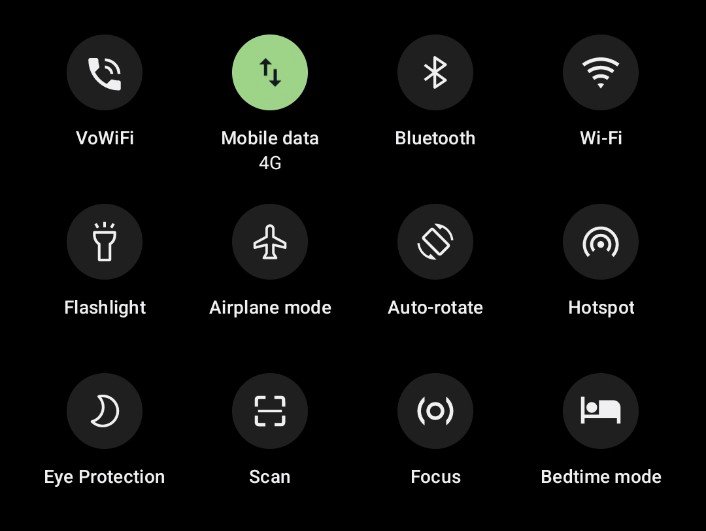
If your connection suddenly becomes unstable, turn Airplane Mode on for about 10 seconds and then turn it off to reconnect to the network.
Try another network for one match. If the lag disappears, your original connection may be the problem.
2. Lower Graphics Settings and Increase FPS
If Free Fire is freezing, stuttering, or dropping frames during fights, your graphics settings may be too demanding for your phone.
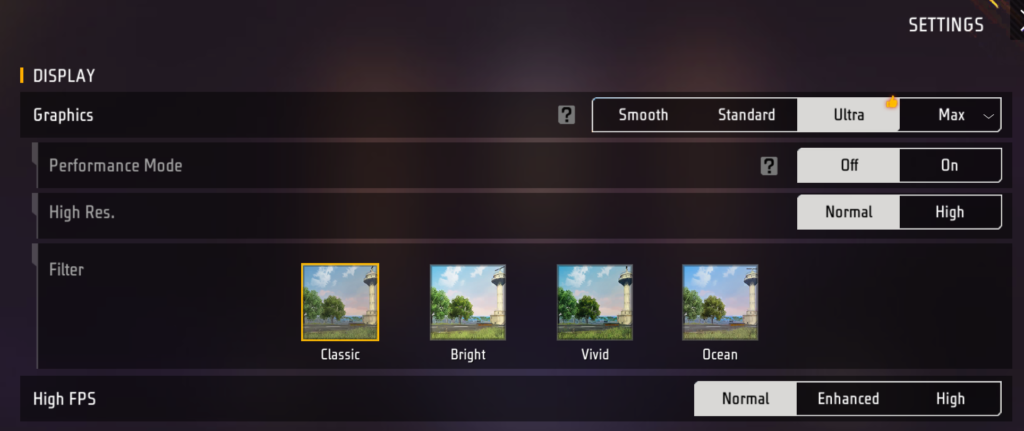
Open Free Fire → Settings → Display/Graphics and start with these settings:
Graphics: Smooth
High FPS: Turn it on if your phone supports it
Auto Scale: Off, if available
Close unnecessary apps before starting the game.
If your phone gets hot or FPS becomes unstable, try lowering the graphics quality even further. A stable frame rate is usually more useful for competitive gameplay than higher-quality visuals.
3. Close Background Apps Before Playing
Apps running in the background can use your phone’s RAM, processor and network connection. If several apps are active while you’re playing Free Fire, your phone may have fewer resources available for the game.
Before starting a match:
Close apps you aren’t using.
Stop downloads and app updates.
Avoid keeping video or music apps running if your phone struggles with performance.
Restart your phone if it has been running for a long time and gameplay has become unusually slow.
You don’t need to constantly clear every background process. The goal is simply to free up resources before a gaming session, especially on phones with limited RAM.
4. Prevent Your Phone From Overheating 🌡️
Heat can affect your phone’s performance during long gaming sessions. When the device becomes too warm, it may reduce performance to control its temperature, which can lead to FPS drops and stuttering.
Try these steps:
Avoid playing while your phone is charging.
Remove a thick phone case if it traps heat.
Play in a cool, well-ventilated place.
Lower the graphics settings if the phone becomes hot.
Take a short break between long gaming sessions.
Avoid direct sunlight while playing.
Tip: If Free Fire runs smoothly at first but starts lagging after 20–30 minutes, overheating could be one of the things worth checking.
5. Free Up Storage Space on Your Android Phone
Running very low on storage can affect overall phone performance, especially when you’re gaming and other apps are working in the background.
Before playing Free Fire, check how much free storage your phone has. If your storage is almost full, remove files and apps you no longer need.
Try these steps:
Delete unwanted videos, screenshots and downloads.
Uninstall apps you no longer use.
Clear unnecessary files from your Downloads folder.
Move large photos and videos to cloud storage or another device if needed.
Keep some free space available rather than filling your storage completely.
Tip: You don’t need to delete important files just to make Free Fire run better. Start with unnecessary files and apps.
6. Choose the More Stable Network 📶
If your main problem is high ping, changing graphics settings won’t necessarily fix it. Ping depends mainly on the quality and stability of your internet connection.
Try these steps:
Use the network that gives you the most stable connection, not necessarily the highest speed.
If you’re using Wi-Fi, stay reasonably close to the router.
If you’re using mobile data, try playing from a location with stronger signal.
Avoid playing while other devices are heavily downloading or streaming.
If your ping suddenly spikes, disconnect and reconnect to the network.
Don’t use a VPN just to reduce ping unless you have a specific reason—VPNs can sometimes increase latency.
💡 Quick Test
Play one short match on your usual connection. Then, if possible, try another stable network and compare the in-game ping.
The connection with the more consistent ping is generally the better choice for Free Fire.
7. Clear Free Fire Cache Safely 🧹
Free Fire stores temporary files in its cache. If these files become unnecessarily large or something goes wrong with cached data, clearing the cache can be a useful troubleshooting step.
On most Android phones:
Open Settings.
Go to Apps or App Management.
Find and select Free Fire.
Tap Storage or Storage & cache.
Select Clear Cache.
⚠️ Important: Tap Clear Cache, not Clear Data/Storage. Clearing the app’s data can remove locally stored app information and may require you to sign in or download game resources again.
After clearing the cache, open Free Fire and check whether the lag has improved.
Tip: Clearing cache isn’t something you need to do every day. Use it as a troubleshooting step when you’re experiencing unusual problems.
8. Restart Your Phone Before a Long Gaming Session 🔄
If your phone has been running for a long time, a simple restart can sometimes solve temporary performance problems.
Restarting closes background processes and gives the system a fresh start. It can be especially useful if Free Fire suddenly starts stuttering even though it was running normally earlier.
Try restarting your phone when:
Free Fire suddenly becomes unusually slow.
Other apps are also lagging.
Your phone has been running continuously for several days.
The game starts normally but performance gets worse over time.
After restarting, open Free Fire first and test the game before launching several other apps.
Tip: A restart won’t fix a poor internet connection, but it can help with temporary phone-performance issues.
9. Update Free Fire and Your Android Phone 📲
Sometimes lag or performance problems can be caused by outdated game files or an older system version. Keeping both the game and your phone updated can help avoid known bugs and compatibility problems.
Before playing, check for updates:
Open the Google Play Store and check whether Free Fire has an available update.
Go to your phone’s Settings → System/Software Update and check for an Android update.
Install updates when you’re connected to a stable network.
Restart your phone after a major system update if necessary.
Important: Don’t install APK files or game updates from unknown websites. Use the official app store or your phone manufacturer’s update system.
Also, an update won’t automatically eliminate every type of lag. If the problem is caused by weak network coverage, overheating or hardware limitations, you’ll need to address that specific issue.
10. Optimize Your Phone’s Gaming Settings 🎮📱
Your Android phone may have built-in settings designed to improve gaming performance. Depending on the phone brand, these can be called Game Mode, Game Turbo, Game Booster, Gaming Mode or something similar.
Before launching Free Fire:
Turn on your phone’s Game Mode/Game Booster if available.
Give Free Fire priority over unnecessary background activity.
Turn off Battery Saver while playing if it limits performance.
Avoid using extreme performance settings if they make your phone overheat.
Keep notifications and other interruptions to a minimum during a match.
Remember that these options vary between Android phones, so you don’t need to enable every performance setting you see. Choose settings that keep the game smooth without causing excessive heat or battery drain.
Quick takeaway
If you’re still experiencing lag after trying these fixes, identify whether the problem is high ping, FPS drops, overheating or network instability. Finding the actual cause is more effective than changing random settings.
11. How to Tell If Free Fire Lag Is Caused by Ping or FPS
Not all lag is the same. Knowing whether you’re dealing with high ping or low FPS can help you choose the right solution.
🔵 Signs of High Ping
You may have a network problem if:
Your character responds late after you tap a button.
Enemies suddenly move or teleport.
Your ping jumps sharply during matches.
You see connection warnings in the game.
The game becomes normal again when you switch networks.
What to try: Check your Wi-Fi/mobile-data connection and use the more stable network.
🟢 Signs of Low FPS
You may have an FPS/performance problem if:
The game looks choppy rather than simply delayed.
FPS drops during intense fights.
Your phone becomes very hot while playing.
Lowering the graphics makes the game smoother.
Other games also struggle on your phone.
What to try: Lower graphics, enable a suitable FPS option, close unnecessary apps and prevent overheating.
⚡ Quick Difference
High ping = internet/network problem
Low FPS = phone/game performance problem
Sometimes you can have both at the same time, so test each one separately.
12. Best Free Fire Settings for Low-End Android Phones 📱🎮
If you’re playing Free Fire on an entry-level or older Android phone, you don’t always need the highest graphics quality. Stable gameplay is more important than visual quality, especially during close-range fights.
Try these settings as a starting point:
Setting
Recommended
Graphics
Smooth
High FPS
On, if the phone can maintain it
Resolution
Normal or Standard
Auto Scale
Off, if available
Game Booster
On, if your phone provides one
Battery Saver
Off while gaming
Don’t copy these settings blindly
Every phone is different. If enabling High FPS makes your phone extremely hot or causes frequent frame drops, try a lower option instead.
The best setup is the one that gives you consistent gameplay without excessive heating.
🎯 Best approach for low-end phones
Start with Smooth graphics, play one or two matches, and observe the performance. If the game remains stable, you can experiment with a higher setting later.
This is better than immediately selecting the highest graphics option and assuming it will improve your gameplay.
Still Experiencing Free Fire Lag? Try These Extra Fixes
If Free Fire lag continues after trying these steps try these to control Free Fire lag:
Check your network at different times: Network congestion can sometimes cause temporary ping spikes.
Avoid playing while downloading large files: Downloads can consume bandwidth and affect your connection.
Don’t use unnecessary VPNs: A VPN can sometimes add extra network latency.
Check for phone overheating: If lag appears after playing for a long time, let the device cool down.
Try another network: This can help determine whether the problem is your internet connection or your phone.
Check whether other apps are lagging: If the whole phone feels slow, the problem may not be Free Fire itself.
Give the game a fresh start: Close Free Fire completely and reopen it if you experience unusual stuttering.
When Nothing Works
If Free Fire continues to lag after trying these steps, the issue may be related to your device’s hardware, network provider, game version, or a temporary server-side problem.
Avoid downloading “lag fix,” “ping booster,” or modified Free Fire apps from unknown websites. They aren’t necessary for the troubleshooting steps in this guide and can create additional security or account risks.
Frequently Asked Questions
Why is Free Fire lagging on my Android phone?
Free Fire can lag because of unstable internet, high ping, low FPS, overheating, limited storage, background apps, or graphics settings that are too demanding for your device.
How can I reduce Free Fire ping?
Use the most stable Wi-Fi or mobile-data connection available, avoid heavy downloads while playing, and try switching networks to see whether the problem improves.
Does lowering graphics reduce lag?
It can help with FPS drops and stuttering, particularly on phones that struggle with higher graphics settings. It won’t necessarily fix high ping caused by your internet connection.
Should I use a VPN to reduce Free Fire ping?
Not necessarily. A VPN can sometimes increase latency because your connection is routed through another server. It’s better to first troubleshoot your normal Wi-Fi or mobile-data connection.
Does overheating cause Free Fire lag?
Yes, excessive heat can cause a phone to reduce its performance, which may result in FPS drops or stuttering during longer gaming sessions.
Is clearing Free Fire cache safe?
Clearing the cache is generally a normal troubleshooting step. However, avoid tapping Clear Data/Clear Storage unless you understand what information may be removed or need to be downloaded again.
What are the best Free Fire settings for a low-end phone?
Start with Smooth graphics and a suitable FPS setting. If the phone becomes hot or FPS becomes unstable, lower the settings further.
Conclusion
Free Fire lag on Android can come from several different causes, so there isn’t one setting that fixes every problem. A stable internet connection, suitable graphics settings, enough storage, good phone temperature and fewer background apps can all help improve the gaming experience.
If you’re experiencing high ping, focus on your internet connection first. If the game feels choppy or has FPS drops, look at your graphics settings and phone performance.
Try the fixes in this guide one at a time rather than changing everything together. This makes it easier to identify what is actually causing the problem on your device.
With the right settings and a stable connection, you can make Free Fire smoother and enjoy a more consistent gaming experience on Android. 🎮🔥
For official Free Fire support and game information, you can also check the Free Fire Support Center. https://ff.garena.com/en/support/?utm_source=chatgpt.com
If you’re also looking for more gaming recommendations, check out our guide to the best Indian games of 2026. https://itshk.in/top-indian-games-2026-2/